 admin
admin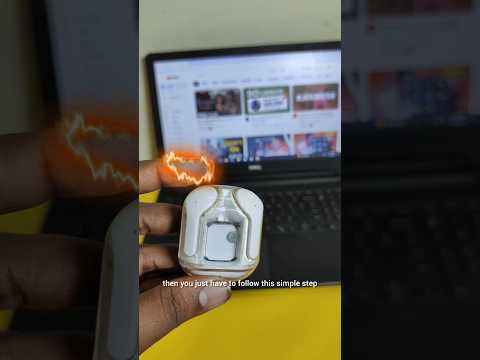
- 351.8K
- 3.4K
- 45
- 0%
[BLANK LINE]
Connecting your laptop to Bluetooth earbuds is a straightforward process that can enhance your listening experience. In this article, we will walk you through the steps to connect your Bluetooth earbuds to your laptop running Windows 10.
Understanding Bluetooth Earbuds and Laptop Connectivity
Before we dive into the steps, it's essential to understand how Bluetooth earbuds work with laptops. Bluetooth earbuds are wireless headphones that use radio waves to connect to devices, allowing you to stream audio without the need for cables. To connect your Bluetooth earbuds to your laptop, you'll need to put your earbuds in pairing mode and follow the on-screen instructions on your laptop.
Preparing Your Laptop and Earbuds
To connect your Bluetooth earbuds to your laptop, make sure you have the following:
A laptop running Windows 10
A pair of Bluetooth earbuds
The earbuds' pairing mode enabled
Step 1: Enable Bluetooth on Your Laptop
To start the pairing process, you need to enable Bluetooth on your laptop. To do this, follow these steps:
Click on the Start button and select Settings
Click on Devices and then Bluetooth and other devices
Toggle the switch next to Bluetooth to turn it on
Make sure your laptop is in range of your earbuds
Step 2: Put Your Earbuds in Pairing Mode
To put your earbuds in pairing mode, follow the manufacturer's instructions. Typically, you'll need to press and hold the power button or the pairing button until the earbuds start flashing.
Step 3: Search for Available Devices on Your Laptop
Once your earbuds are in pairing mode, your laptop will detect them. To search for available devices, follow these steps:
Click on the Start button and select Settings
Click on Devices and then Bluetooth and other devices
Click on Add a device
Select Bluetooth from the list of available devices
Click on the earbuds' name from the list of available devices
Step 4: Connect Your Earbuds to Your Laptop
Once you've selected your earbuds, your laptop will attempt to connect to them. If the connection is successful, you'll see a confirmation message on your laptop. To complete the pairing process, follow these steps:
Click on the Connect button
Wait for a few seconds for the earbuds to connect to your laptop
Once connected, you can start streaming audio from your laptop to your earbuds
Troubleshooting Common Issues
If you're experiencing issues connecting your earbuds to your laptop, try the following:
Make sure your earbuds are in pairing mode
Ensure your laptop is in range of your earbuds
Restart your laptop and earbuds
Try pairing your earbuds with a different device to rule out any issues with the earbuds
Alternate Products
If you're in the market for new earbuds or a laptop, consider the following options
Sony WF-1000XM4 : A high-end pair of wireless earbuds with industry-leading noise cancellation.
Apple AirPods Pro : A popular pair of wireless earbuds with seamless integration with Apple devices.
Dell XPS 15 : A powerful and feature-rich laptop designed for professionals.
HP Envy x360 : A versatile and affordable laptop option for students and commuters.
Asus ZenBook 14 : A compact and lightweight laptop with impressive performance.
Final Verdict
Connecting your laptop to Bluetooth earbuds is a simple process that can enhance your listening experience. By following the steps outlined in this article, you'll be able to connect your earbuds to your laptop and enjoy wireless audio streaming. Remember to troubleshoot common issues and consider alternative products if you're in the market for new earbuds or a laptop.